Most remote-work stacks fail in the same dull way: they buy the loudest tool first and the right tool last.
If you are looking at remote work seriously, the questions are usually the boring ones that matter. How do people communicate without turning every update into a meeting? Where does work actually live? Who owns the files, the deadlines, and the passwords? And what happens when a laptop disappears, a channel gets noisy, or a task was “mentioned” but never assigned? That is the real test. Everything else is ceremony.
The market is not hypothetical. The U.S. Bureau of Labor Statistics reported that 22.6 percent of workers teleworked in March 2026, and Pew Research found that many remote workers would be likely to leave if they could no longer work from home. In other words, remote work is no longer a temporary arrangement that needs excuses. It is an operating model that needs tools, rules, and a small amount of discipline. That is where the actual problem begins.
In this article, I will cut through the obvious clutter and focus on the tools that matter: communication platforms, shared storage, task tracking, time management, and the security controls that keep a remote team from becoming a cautionary tale. If a tool does not reduce friction, clarify ownership, or lower risk, it is not helping. It is just moving the mess around.
What remote-work IT tools actually mean
Before the marketing noise starts, it helps to define the terms. Remote work tools are not a single product category. They are a stack of software and controls that solve five different problems: communication, coordination, document access, identity, and recovery. If one of those pieces is missing, people fill the gap with email threads, spreadsheets, or guesswork. That is how a simple setup turns into a small disaster.
Here is the language worth keeping straight:
- SaaS: Software as a Service. You subscribe instead of hosting the software yourself. Good when you want speed and less infrastructure baggage.
- SSO: Single sign-on. One login opens multiple approved systems. Good when you want fewer passwords and fewer support calls.
- MFA: Multi-factor authentication. A second proof of identity beyond the password. Good because passwords alone are a weak joke.
- VPN: Virtual private network. A secure tunnel to internal resources. Useful, but not a magic shield.
- EDR: Endpoint detection and response. Security software that watches laptops and desktops for suspicious behavior.
- DLP: Data loss prevention. Controls that help stop sensitive files from being shared in the wrong place.
- Asynchronous communication: Updates that do not require everyone to be online at the same time. Useful when the team is distributed and time zones are not cooperating.
The right stack usually has one obvious goal: keep the work moving without forcing everyone into the same calendar slot. That sounds simple. It rarely is. Most bad remote setups collapse because they confuse motion with progress.
The minimum stack every remote team needs
I would not start by buying every shiny thing on the market. I would start with the base layers that make the other tools usable. If those are weak, everything else leaks.
| Category | Examples | What it should do | Common failure |
|---|---|---|---|
| Communication | Zoom, Microsoft Teams, Slack | Support meetings, chat, and quick decisions | Too many channels, too many meetings, too little ownership |
| Shared storage | Google Drive, OneDrive, Dropbox | Keep files in one place with access control and version history | Duplicate files living in email attachments and personal folders |
| Task tracking | Asana, Trello, ClickUp | Make deadlines, owners, and dependencies visible | Tasks hidden in chat threads where accountability goes to die |
| Identity and access | SSO, MFA, password manager | Control who gets in and what they can do | Shared logins and weak passwords pretending to be a process |
| Device protection | EDR, encryption, mobile device management | Protect endpoints and support recovery | Home laptops drifting outside policy until something breaks |
| Time and workload visibility | Toggl Track, Clockify, Harvest | Show where time goes and whether capacity is real | Invisible overwork and false assumptions about bandwidth |
That table is the short version. The long version is this: remote work only looks efficient when the work is visible. If ownership is fuzzy, if files are scattered, or if people spend their mornings asking where the latest version lives, the stack is failing at its first job.
For teams that want more operational depth, Valbosoft’s services page covers the kind of implementation work that turns tools into a working system instead of a pile of subscriptions. The about page gives context on the business behind the site.
Communication platforms that do not waste the day
Communication tools are where remote work either becomes manageable or turns into noise. The job is not to maximize messaging. The job is to reduce the number of times people need to interrupt each other to get simple answers.
Zoom still matters because some conversations need a live screen, a face, and a shared decision. It is useful for client calls, team meetings, onboarding, and the kind of discussion where tone matters enough that text would only make things worse. The mistake is to use video meetings for everything. If a topic can be solved in a written update, it should probably stay written.
Microsoft Teams has a strong place in organizations already living inside Microsoft 365. Slack remains better for channel-based coordination when teams want lighter-weight, more flexible chat. Discord can work for informal communities, but business discipline on Discord is a fragile thing. It is easy to drift from coordination into permanent background chatter. That is not collaboration. That is ambience.
Email still matters, but it should not be the place where everything goes to hide. Shared inboxes, filters, and rules can help keep it sane. If remote staff keep asking, “Did you see my email?” the real issue is not email. It is process design. Email is just the symptom.
- Use video calls for decisions, not status theater.
- Use chat for quick questions and coordination, not long-form policy.
- Use email for formal records, external communication, and longer-lived requests.
- Write things down where the whole team can find them later.
That last point matters more than people admit. A remote team needs a memory, and chat history is a bad memory unless someone is actively curating it. A searchable knowledge base, a shared doc library, and clear channel rules do more practical work than another “all-hands” meeting ever will.
Storage and time tracking: the invisible half of remote work
Remote teams live or die on file access. If documents are trapped on one laptop, in one inbox, or in one employee’s private folder, the business has not built a system. It has built a dependency. Shared storage is supposed to remove that bottleneck. Google Drive, OneDrive, and Dropbox all solve the same basic problem: keep the working version in one controlled place, then make permissions, version history, and search do the rest.
The practical question is not which storage brand is trendy. It is whether people can find the latest file without asking for it. The moment a team starts exchanging attachments like it is 2012 again, the system has regressed. Version history, link sharing, naming conventions, and folder ownership are not glamorous features, but they save hours of avoidable confusion.
Time management software deserves the same blunt treatment. Tools such as Toggl Track, Clockify, and Harvest are useful because they show where effort actually goes. That matters for billable work, capacity planning, and workload balance. It also exposes a familiar lie: the claim that “everyone is busy” when the evidence says the team is just busy in different directions.
- Use shared storage when multiple people need the same documents.
- Use version history when files change often and mistakes matter.
- Use time tracking when capacity is unclear or billing depends on it.
- Use a knowledge base when the same questions keep coming back from the dead.
None of this is complicated, but it does require one thing many teams avoid: naming an owner. Someone has to decide what the storage structure is, who can change it, and how often it gets reviewed. Without that, cloud storage turns into cloud clutter. The problem is not the cloud. The problem is the human habit of leaving unowned structure to decay quietly.
Project management tools that keep work visible
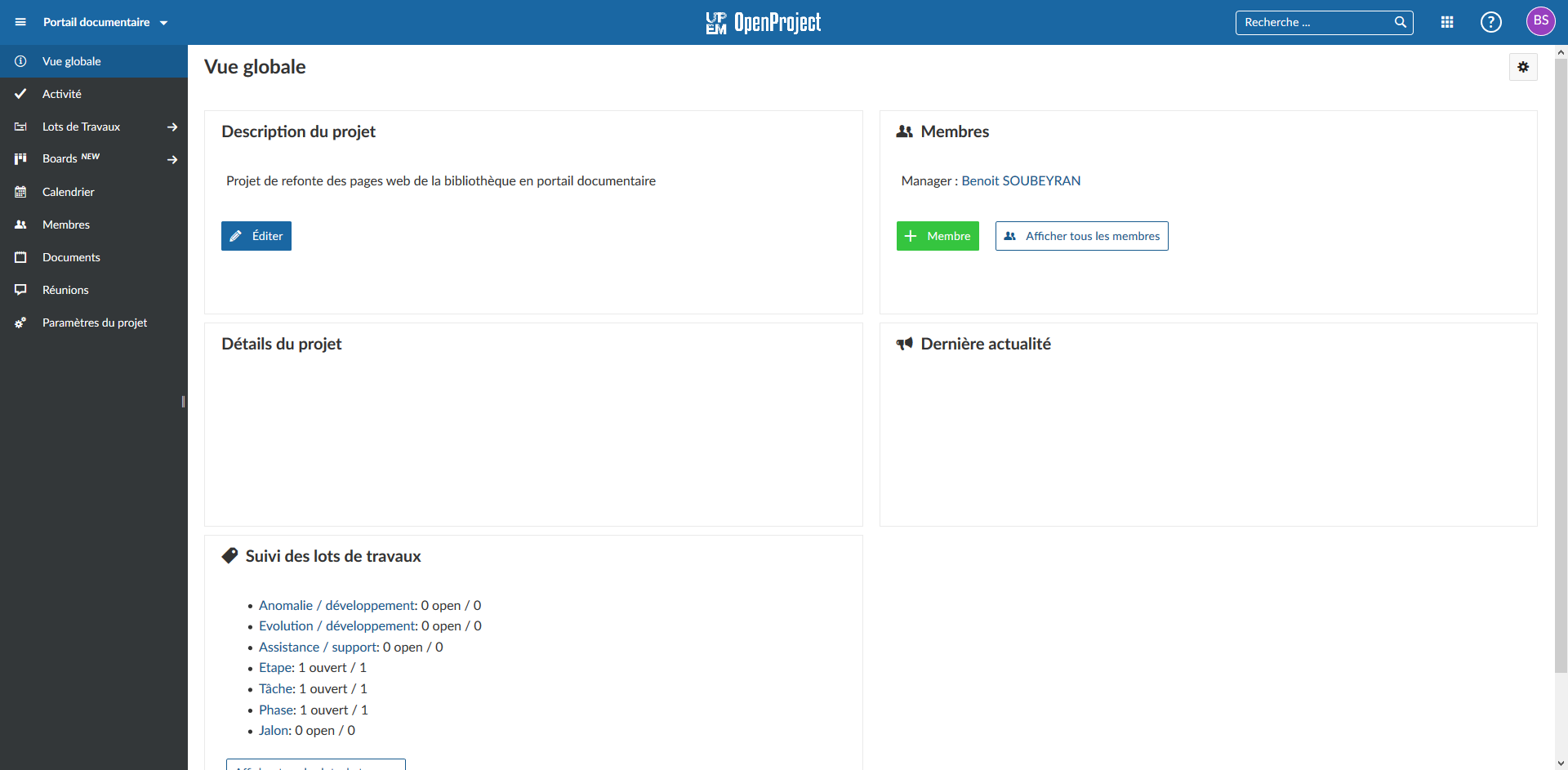
Project management software is where a remote team stops pretending that good intentions are enough. A board or list does not create accountability by magic, but it does force the work into a shape people can inspect.
Asana works well when work needs owners, dependencies, and due dates that can survive more than one conversation. Trello is easier for simple kanban-style flow. ClickUp tries to do more of everything, which is sometimes useful and sometimes exactly how tool sprawl starts. The right answer depends on how complicated the work really is. Not how impressive the demo looked.
For remote teams, the useful test is not “Does the software have all the features?” The useful test is “Can this team use it every week without a lot of policing?” If the answer is no, the platform is probably too heavy or the workflow is too fuzzy. In either case, more software will not rescue the process.
Project tools are also where time management and delivery discipline meet. If the team keeps missing dates, start by checking whether tasks have clear owners, whether dependencies are documented, and whether updates are happening in the same place the work lives. That boring cleanup often fixes more than a feature upgrade does.
Three patterns show up again and again:
- Board-first teams need simple visual flow and low friction.
- Plan-heavy teams need dependencies, timelines, and reporting.
- Hybrid teams need both, but only if someone is willing to maintain the structure.
If the team keeps inventing workarounds, the issue is usually not the software. It is the process. A tool can only carry so much nonsense before it starts looking like the problem.
Security controls that are not optional
Remote work expands the attack surface. That is the polite phrase. The less polite version is that more devices, more networks, and more accounts mean more ways for something to go wrong. This is why security cannot be an afterthought bolted onto the stack once people are already using it.
The NIST telework security basics guidance is a good reminder that remote access still needs policies, protected devices, identity controls, and recovery planning. The details change, but the core rule does not: if staff can reach company systems from home, the company still owns the risk.
Here is the short list I would treat as baseline:
- Require MFA everywhere. If a system does not support it, that is a warning sign, not a charming quirk.
- Use a password manager. Shared spreadsheets full of passwords are not security. They are evidence.
- Encrypt devices. A lost laptop should be a nuisance, not a breach report.
- Keep endpoints managed. Updates, patching, and alerting should happen before the problem becomes visible to customers.
- Limit access by role. People should get the minimum access they need, not the maximum access they can be trusted not to abuse.
- Test backups. A backup that has never been restored is a rumor with storage costs.
Security also shapes communication. If a team starts sharing credentials in chat, storing client data in personal folders, or moving sensitive files through unapproved services, the tool stack has failed politically and technically. The fix is usually a policy plus a better path, not another warning email.
For businesses that need to move toward better identity control, secure access, and cleaner remote workflows, it may also help to decide where automation belongs and where it does not. A neutral third-party resource on AI consulting services can be useful when the team is trying to separate practical automation from decorative hype. That is the point at which a tool stack becomes a workflow design problem.
How to roll the tools out without creating new problems
Buying the software is easy. Getting people to use it correctly is the hard part. The rollout plan matters because every tool creates new habits, and habits are where most projects either succeed or quietly rot.
I would implement remote-work tooling in this order:
- Set the identity layer first. Create accounts, SSO, MFA, and password policies before anyone starts using the tools in anger.
- Pick one place for communication. Do not make people guess whether a decision lives in chat, email, or a meeting note.
- Choose one system of record for tasks. A task that exists in three places does not really exist anywhere.
- Define file rules. Name ownership, folder structure, version control, and sharing permissions clearly.
- Train for behavior, not features. People need to know what they should do on a Tuesday afternoon, not just which buttons exist.
- Review the stack after 30 days. Remove the tools nobody used and tighten the ones that generated confusion.
That last review is where most teams get honest. You will usually find one of three things: a tool everyone likes but nobody uses correctly, a tool nobody likes but everyone needs, or a tool that looked useful until the team saw its real cost. All three are normal. The trick is to notice them early.
A few practical rules help prevent the usual drift:
- Fewer tools beat more tools. Remote work does not need a bigger stack every quarter.
- Default to documented decisions. If it matters, write it down where the team can find it.
- Keep meetings short and intentional. Meetings should resolve uncertainty, not preserve it.
- Measure adoption. If nobody uses the new process, it is not a process. It is a suggestion.
If the rollout starts producing confusion, that is not a reason to panic-buy another platform. It is usually a sign that ownership, permissions, or training need adjustment. Most tool failures are process failures wearing a nice interface.
Bottom line
Remote work does not fail because people are far apart. It fails because the work is scattered across too many systems and too little discipline. The right tools reduce that scatter. The wrong tools make it easier to hide.
The practical stack is simple: one communication layer, one task system, one storage system, strong identity controls, managed devices, and a security baseline that does not depend on optimism. Add time tracking if you need visibility. Add automation if the workflow is already stable. Ignore everything that only exists to look modern in a product demo.
If you want help turning those choices into something the team will actually use, start with the services page. If you want more plain-language notes on software and operations, the about page gives context on the site. And if you are still arguing about whether the tool stack or the process is the problem, check the process first. The tool is usually just the loudest witness.
Key takeaways
- Remote work is now a normal operating model, not a temporary exception.
- The best tools make ownership, access, and coordination easier to see.
- Communication, project tracking, storage, and security are the four core layers.
- MFA, backups, and device protection are baseline requirements, not advanced features.
- Rollout and discipline matter more than feature lists.